 Chiho AI
Telegram Impersonation Scam Prevention: How to Protect Your Team
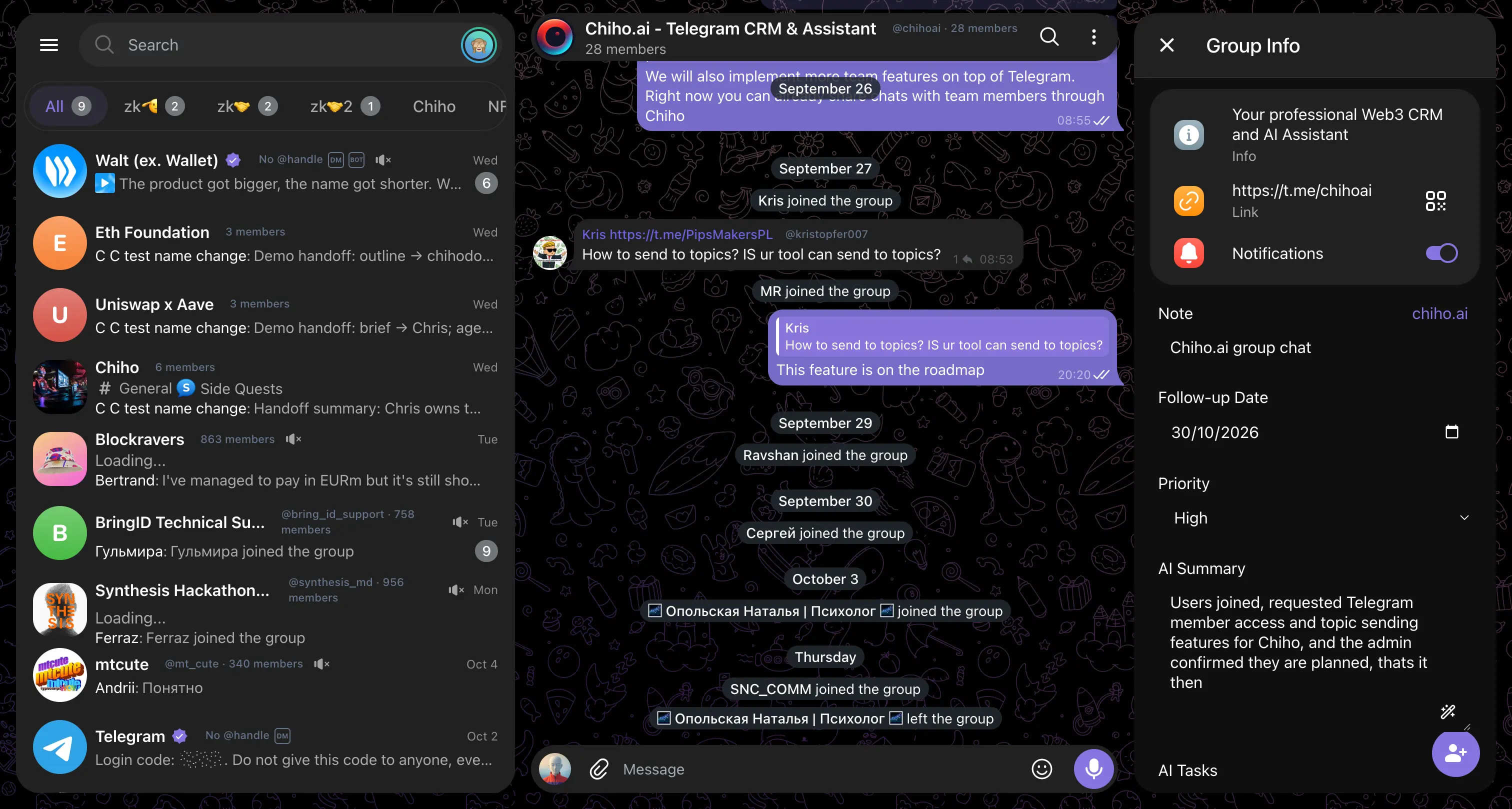
A Telegram DM arrives from someone who looks like your colleague. Same name. Same profile picture. They ask you to join a new working group, open a document, or help with an urgent wallet task.
You recognize the person and keep working. But the message came from a different account.
Chiho helps crypto teams spot this mismatch before a familiar name becomes a reason to grant access. Its Chrome extension shows Telegram handles beside names, highlights accounts you explicitly trust, and warns when another account looks like one of them.
The header image is a real Telegram Web capture with Chiho. The edited demonstrations below use fictional accounts; the icon preview uses synthetic test data. They illustrate the feature, rather than an actual scam incident. Available icons depend on account data and the extension version.
How a fake colleague gets into the conversation
Consider this fictional example. Your operations lead is Anna Smith, with the handle @anna_ops. An attacker copies her display name and photo, then creates @anna_0ps, replacing the letter o with a zero.
The fake Anna contacts you directly or appears in a group. The first request might sound ordinary: “We moved the launch discussion here.” Later, it becomes “Open this file,” “Approve this transaction,” or “I need the admin account for a minute.”
The weak point is the moment you mistake a familiar-looking profile for the account you already know. Crypto teams coordinate with colleagues, exchange contacts, investors, and partners across many Telegram groups. A copied identity can fit into that working context.
This attack pattern has been documented. In Microsoft’s investigation of a Telegram attack against cryptocurrency companies, attackers created profiles using exchange employees’ details, invited targets into another group, and built credibility before sending a malicious spreadsheet. That incident illustrates the impersonation pattern; it is not a claim that Chiho was deployed there or would have blocked every step.
Put the handle beside the name
Opening every profile to inspect its username adds friction. Chiho brings the available @handle into the conversation, beside visible names in Telegram Web.
That makes differences such as @anna_ops and @anna_0ps easier to notice while you read. Handles are available without signing in to Chiho when Telegram Web has the relevant account information cached.
A visible handle helps, but it is not proof of identity. Telegram display names and usernames can change. The account’s Telegram user ID is the key Chiho uses to associate your trust with a specific account.
Mark the real accounts as trusted
In your Chiho profile, open My Colleagues and Trusted Accounts and choose Mark trusted for accounts you have independently checked.
Shared groups help suggest people you may know. Those suggestions do not automatically make an account trusted. Confirm the person through a conversation or contact method you already rely on before marking an unfamiliar account.
Once you sign in to the extension, Chiho shows a badge for that account in Telegram Web:
- Blue: an account you personally marked trusted.
- Purple: an account trusted by one of your teams, without personal trust.
Hovering the badge explains where the trust comes from. Personal and team trust are combined, so you can recognize the same account across your workspaces. Revoking your personal trust does not remove a team’s trust; the badge explains the remaining source.
The badge means this is the Telegram account you or your team marked trusted. It does not certify the person’s employer or promise that their account is secure.
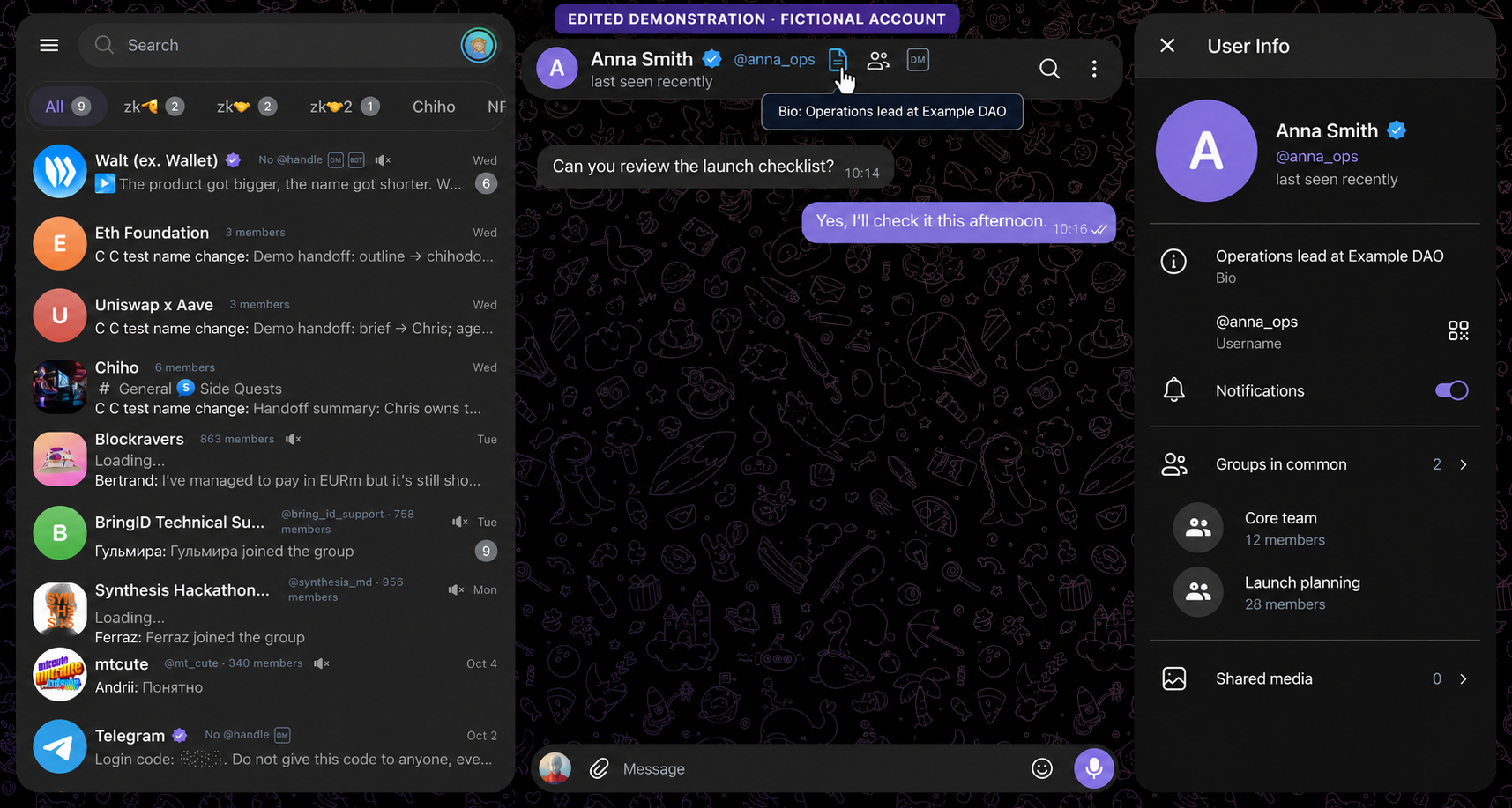
Edited demonstration with fictional Anna Smith: a blue trusted-account badge in a DM header and the bio tooltip open. This is an illustration, not a live account capture.
Get a warning when another account looks similar
If a different account uses a name or handle similar to a trusted account, Chiho can highlight it as a possible impersonator.
The check catches common lookalike characters and small spelling changes. It compares reasonably long full names and handles; a shared first name alone does not trigger a warning. An account that copies both the name and handle’s appearance still has a different Telegram user ID.
Warnings appear beside relevant identities when they are visible in Telegram Web, including DMs and group sender or member rows. Clicking a warning opens details about the mismatch and a link to the trusted account it resembles.
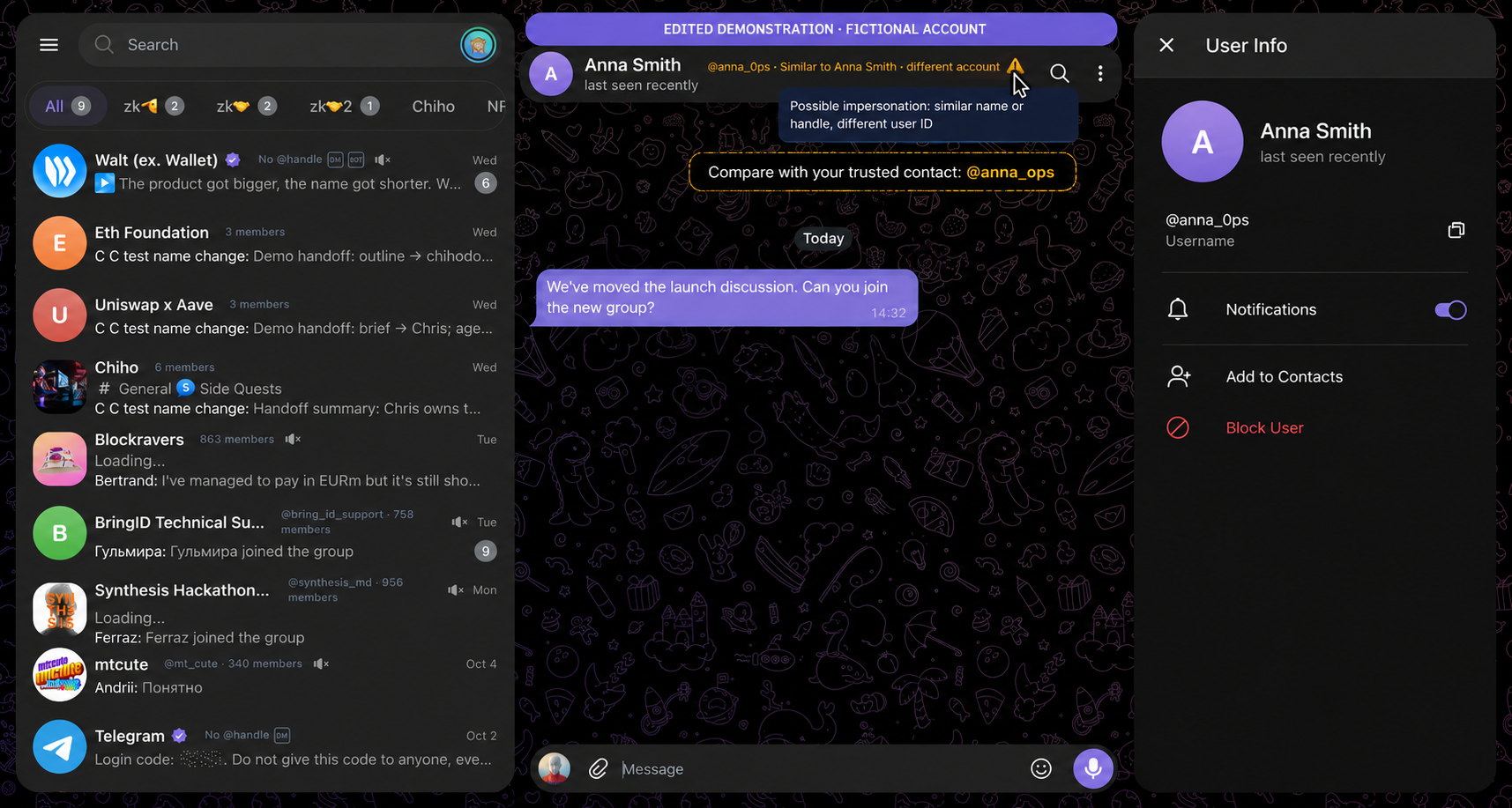
Edited demonstration: the fictional @anna_0ps account resembles trusted @anna_ops but has a different identity. The amber warning is illustrated; the dashed comparison callout is an editorial annotation.
Use that link to return to the conversation you know. Before sharing a code, changing permissions, opening an unexpected file, or approving a transfer, verify the request with the real person through an established channel.
Use profile context without confusing it with trust
A bio and groups in common can help you place a contact. Chiho can show a small bio icon and a common-groups icon beside the handle when that information is available. Hovering reveals the bio or the names of observed shared groups.
These are context clues. A bio is self-written, and an attacker may join a group you belong to. Neither creates a trusted-account badge.
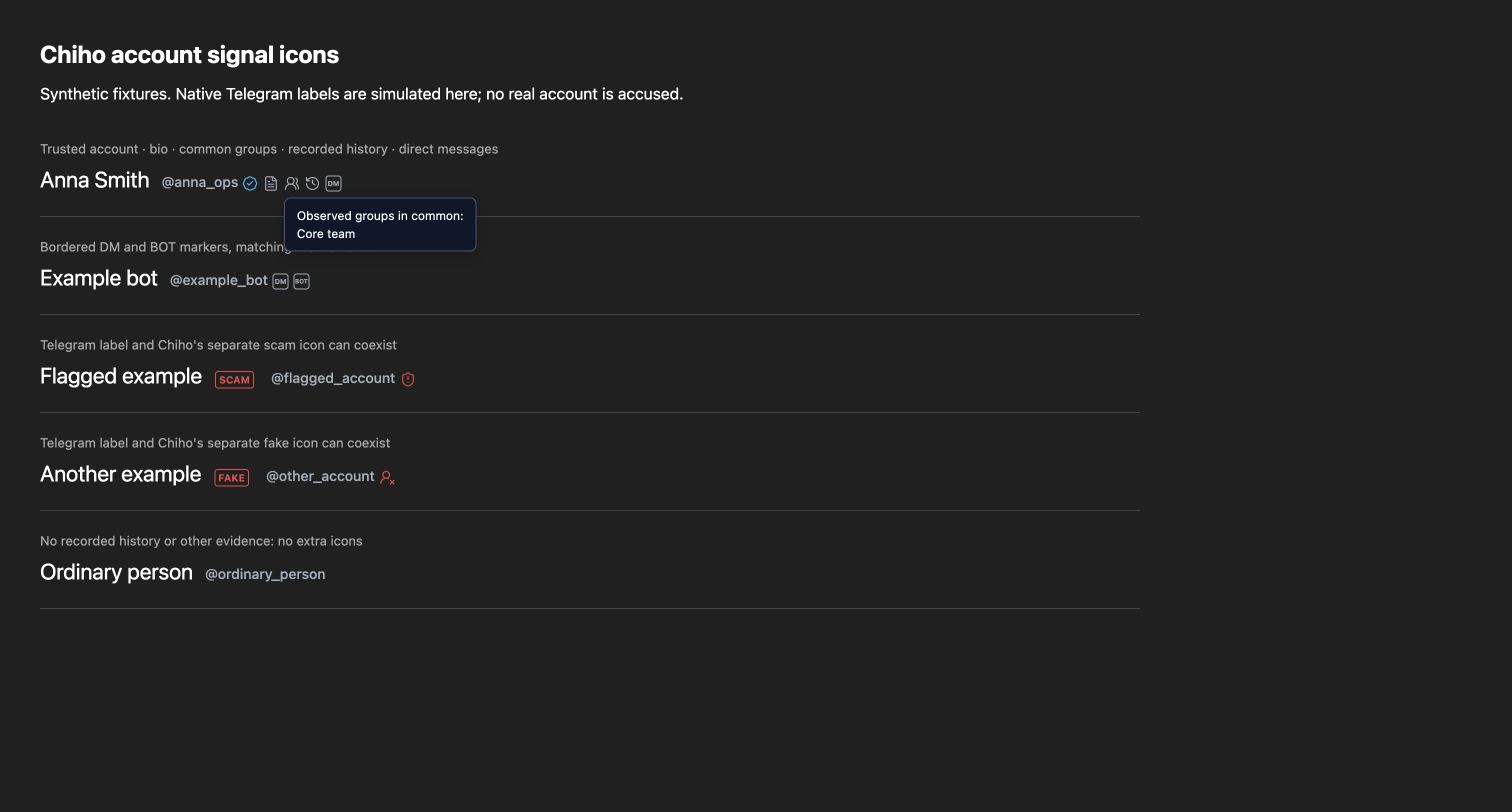
Synthetic preview rendered by the extension: the common-groups tooltip opens beside Anna Smith’s handle. The other rows demonstrate DM, BOT, SCAM, and FAKE icons using test data; no real account is accused.
Other icons can surface private-message history, name or handle changes recorded by Chiho, or Telegram’s bot, scam, and fake flags. A recorded change tells you what Chiho observed; it is not a complete history of the account. Chiho’s lookalike warning is separate from Telegram’s own SCAM and FAKE labels.
Set it up for your team
- Install the Chiho Chrome extension.
- Open Telegram Web and check that available handles appear beside names.
- Choose Continue with Chiho in the extension and connect your Chiho account.
- Connect the same Telegram account in Chiho, then mark known accounts trusted on your profile.
- Return to their DMs or groups in Telegram Web to see the badges and identity details.
Team admins can maintain their team’s trusted accounts. Your own confirmations remain under your control.
What the feature can and cannot tell you
Does it work before Chiho sign-in? Available handles can appear before sign-in. Trusted-account badges and lookalike warnings require your Chiho session and trusted-account data.
Does AI decide who is an impersonator? No. Chiho’s backend compares account identities using deterministic name and handle matching, including common lookalike characters and small spelling differences. The extension displays the result in Telegram Web. A warning means a different account resembles a trusted one; it is a reason to verify, not a verdict about the person.
Does it monitor every group join? No. It adds inline information to identities visible in Telegram Web. It is not a background alert for every new member or unseen message, and it does not annotate Telegram’s mobile or desktop apps.
Will it catch a compromised colleague? A hijacked trusted account can still display its badge because it is the same Telegram account. Treat unexpected sensitive requests carefully even when the badge is present.
Will it catch every scam? No. An attacker with an unrelated name may not resemble anyone you trust. The feature helps expose colleague lookalikes; it does not inspect files for malware or evaluate whether a transaction is safe.
Your team should not have to notice a single changed character under pressure. Put account identity back into the conversation: see the handle, recognize the accounts you trust, and pause when a lookalike appears.