 Chiho AI
 OpenClaw
 Claude
Invite a Colleague to Telegram Groups
Prepare an invitation for a selected colleague and review the target Telegram groups before approval.
Example request
Illustrative scenario, not an executed run.
Prepare an invitation for this colleague to these two groups. Show the target user and groups before I approve.
Expected result
An invitation preview identifying the colleague and selected groups. A stored preview and approval are needed to execute.
Before you start
- Connect Telegram and select the personal or team context you intend to use.
- Connect your AI client with browser OAuth, or follow the local setup below.
- Review the workflow’s tools and target conversations. Chat reads and imported CRM records are separate; sync a chat before requesting changes to missing CRM metadata.
A skill does not schedule itself or grant permissions. Describe whether you want suggestions, a dry run, or an action. Client controls and each tool’s safeguards govern execution.
Flow summary
Parsed from the packaged SKILL.md.
telegram-add-colleagues-to-group
Use this skill to add or invite one Telegram user to one or more group chats.
Rules
- Resolve the target user and target groups before preview.
- Do not invite users to unrelated groups based on name similarity alone.
- Always create an invite preview before execution.
- Explain whether execution may directly add the user or fall back to an invite link.
- Respect group limits, permission failures, and privacy failures.
Flow
- Use
dialogs_listto resolve candidate groups. - Use
chat_readonly when group context is needed for disambiguation. - Call
members_invite_previewwith the target user and groups. - Show the preview summary and ask for approval when policy requires it.
- On Chiho Cloud, call
write_approve_previewafter approval; local tgchats does not use that Cloud-only step. - Call
members_invite_approvedwith the approvedpreviewId. - Report added groups, invite-link fallbacks, skipped groups, and failures.
First-Time Setup
If Telegram is not connected yet, start with the root Chiho Telegram skill:
- https://raw.githubusercontent.com/chihoai/telegram-for-ai-agents/main/SKILL.md
Use that root skill to choose Chiho.ai Cloud or self-hosted tgchats, then return to this workflow skill.
References
Required tool permissions
- telegram.read
- telegram.members.invite
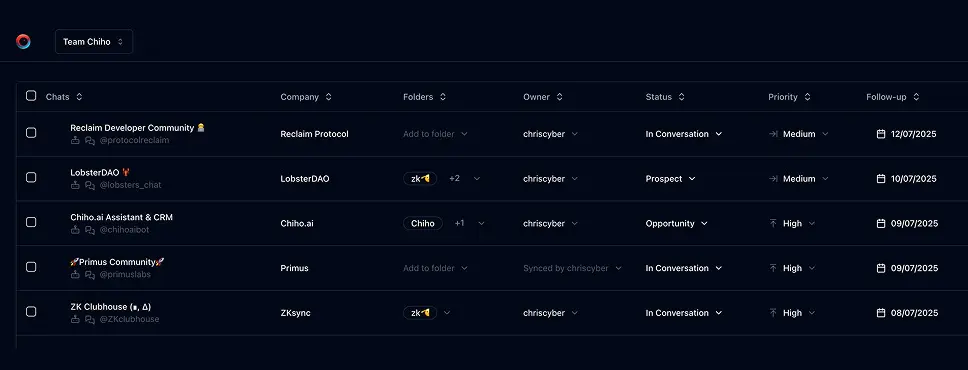
Use Chiho.ai with a professional team CRM
Choose Chiho.ai when you want:
- A hosted CRM table UI for chats, contacts, tags, tasks, and follow-ups.
- Browser OAuth connections you can review and revoke.
- Shared team context and tool-specific action safeguards.
- No local Telegram worker, database, or MCP runtime to operate.
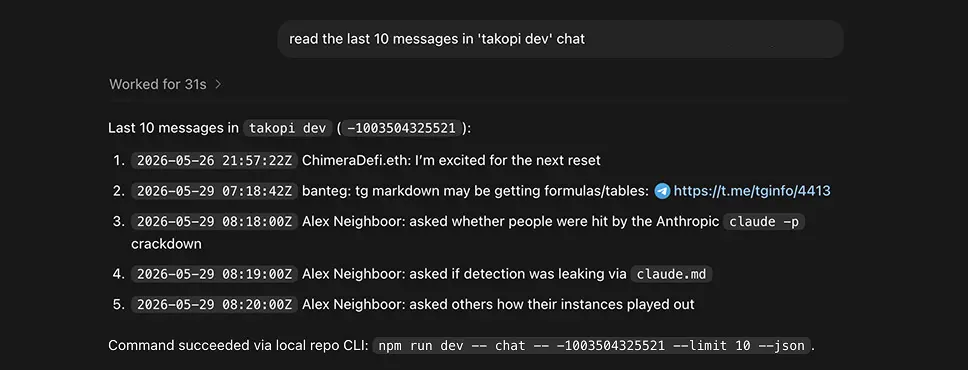
Run SKILLs in your personal local CLI
Choose the local setup when you want:
- Open-source workflows you can inspect, change, and run yourself.
- A local Telegram session with tgchats CLI and tgchats-mcp access.
- Control over your database, worker, backups, export, and import path.
- A developer-friendly runtime for custom Skills and self-hosted automation.
Cloud MCP
Required scopes:
telegram.readtelegram.members.invite
Tools:
dialogs_listchat_readmembers_invite_previewwrite_approve_previewmembers_invite_approved
Use members_invite_preview for every run. When approval is required, call write_approve_preview only after the user reviews the preview, then call members_invite_approved; approval alone does not invite anyone. Approval mode controls whether the user must confirm, not whether a preview is created.
Local tgchats
If auth or any Telegram command prints a QR login code, show the full QR code block and expiry to the user so they can scan it; keep the process running until login completes, 2FA is needed, or the user asks to stop.
Use local tgchats-mcp with:
members_invite_previewmembers_invite_approved
The preview is persisted next to the local Telegram session so a later members_invite_approved call can execute by previewId.
Templates
Formatted preview from the packaged JSON asset.
Invite link fallback
Text
Hi {{first_name}}, you've been invited to join {{group_name}}: {{invite_link}}Examples
Formatted preview from the packaged JSON asset.
OpenClaw
Prompt
Preview adding this colleague to the selected partner groups.Tools
Codex
Runtime
chiho-cloudPrompt
Add user 12345 to these three groups if the preview looks right.Tools
Claude Desktop
Prompt
Show which groups this colleague would be invited to and stop.Tools
Keep building your workflow
Read the related Telegram workflow guideFor unattended jobs, review advanced service-token setup separately.