 Chiho AI
Turn a Verified Telegram Next Step into a Follow-Up Task
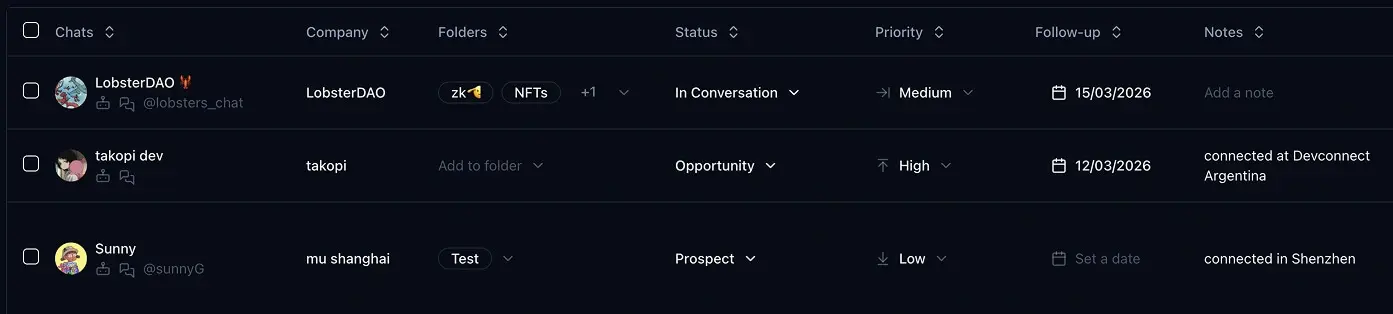
Turn one verified Telegram commitment into a Chiho follow-up task by checking the source, reviewing existing work, choosing a due date, requesting the specific write, and checking the saved result. Creating a task does not send a Telegram message.
Chiho supplies authorized existing Telegram account conversations to an AI client such as Codex, Claude or ChatGPT. A bot or Claude Channel that carries instructions to a running agent serves a different direction of access; that connection alone does not establish access to your personal conversation archive. Actual account identity, permissions, history coverage and available tools decide what can be read. Start with the setup guide and MCP architecture guide.
This guide is based on current Chiho source and documentation. The exercise below is fictional; it is a checklist to reproduce with an authorized fixture, not a live-account test or a customer result. The existing header image shows CRM priority and follow-up date columns, not proof that an MCP task was saved.
1. Verify the message before proposing work
After installation and browser authorization, use auth_status and account_whoami to check the authorized context. Resolve the intended account and conversation before one bounded chat_read. Ask for message references, the inspected window, gaps and later corrections. A successful connection is not proof that relevant messages were retrieved.
Read only this conversation and time window. Identify one explicit next step with its source messages and any later correction. Show the account, chat, proposed action and unresolved date. Do not save tasks, refresh summaries, synchronize chats or send messages.
Separate a customer's commitment from your own reminder. “We will review next week” is not permission to invent a Monday deadline. If the time zone or date is missing, ask before saving. A missing CRM record is a separate setup issue; do not treat a read request as authorization to import it.
2. Check existing tasks beyond today's list
Compare the proposal with existing work for the same account, chat, purpose and deadline. A task called “follow up” may already cover it; wording alone is a weak duplicate check. Review future pending work as well as overdue items, using the appropriate Chiho task view or an available scoped team task listing.
tasks_today lists due-today and overdue follow-ups; it is not a complete future-task inventory. The current personal implementation uses the end of the UTC day, which can differ from your local day. An empty result does not prove no matching task exists. If the available view cannot establish coverage, mark the duplicate check incomplete and pause creation. Use the task triage guide for reviewing a wider queue.
3. Decide the scope, owner and exact due time
Write a short action and reason, then choose the due date and time zone. A task due time is a work deadline, not a Telegram send schedule. Priority should reflect the next commitment; it does not replace that deadline.
Inspect the tools actually available to the connection. tasks_add supports a reason (why), a due value and an idempotency key; do not invent a separate title or assignee argument. The personal path does not assign a teammate. Where team_tasks_add is available, its supported assignee must be a current team member and the write remains subject to team scope and capabilities. Record an unresolved owner as unresolved rather than inferring it from who spoke last. Conversation ownership and task assignment are distinct fields.
4. Review one source-to-task receipt
Use this fictional case as a review exercise. These identifiers are labels for a fixture, not real account or customer details:
Fixture: DEMO-TASK / account-A / chat-Q
Message 301, 17 Oct 2026: "Send the revised scope Monday."
Message 302, 17 Oct 2026: "Correction: Tuesday, after legal review."
Existing-work check: must include future pending tasks for chat-Q
Proposed why: Review legal feedback, then prepare the revised scope.
Reviewer-chosen due: 2026-10-20T10:00:00+08:00
Equivalent UTC: 2026-10-20T02:00:00Z
Owner: unresolved; not inferred from message authorship
Logical write key: demo-task-chat-q-302-v1
Saved task ID / status / verified at: unknown until checked
The correct outcome is to reject the Monday proposal, distinguish legal review as a dependency, and confirm the Tuesday time yourself. The messages do not specify 10:00 or an owner. If an existing task already covers the correction, review that task rather than adding another. Keep source references in your review record; do not assume the task schema has a dedicated source-message field or that this template is an executable tool payload.
5. Request the write and verify persisted state
Once the receipt is complete, ask for exactly one task in the reviewed scope with the reviewed reason, due time and stable key. Keep other writes outside this request. Task changes can execute directly after the AI client's tool controls; Chiho does not require a separate approval dialog for every write. Account/team permissions and capability checks still apply.
Check the tool's returned task ID, reason, due value and status. A created: false result can mean the existing task was returned for the same logical request; it is not automatically a failure. Then verify the saved task in an appropriate task view for that scope, including future work. Record when it was checked. An assistant saying “done” or an empty tasks_today list is insufficient.
If the request times out, inspect existing state before retrying. For a retry of the same logical write, retain the same actor, target, idempotency key and arguments. A different key can create another task; changed arguments with a reused key can return a conflict. Idempotency is not a semantic duplicate detector across unrelated keys or actors. If you cannot verify the outcome, report it as uncertain and stop; do not retry blindly.
6. Keep tasks, drafts and sends separate
A saved task records work. A draft prepares wording for review against current sources. Sending, scheduling or enabling automatic follow-up messages needs its own request and the applicable controls. A task due date does not authorize any of those actions, and changing or completing a task does not prove a separate scheduled message was cancelled.
For priority-based follow-ups, use High, Medium or Low to organize attention around actual commitments. Review enabled automatic-message settings separately from the task queue, including recipient, account, timing and stopping behavior. Telegram runtime waits and Chiho send pacing concern messaging; a saved task is not evidence of message delivery. Never silently retry an uncertain send.
Install Chiho through the Telegram MCP setup, complete browser authorization, check identity and perform one bounded source-backed read. Review one receipt before a separately requested task write. For broader queue selection, continue with the verifiable inbox briefing.