 Chiho AI
Set Up a Shared Telegram Inbox: Ownership and Unassigned Work
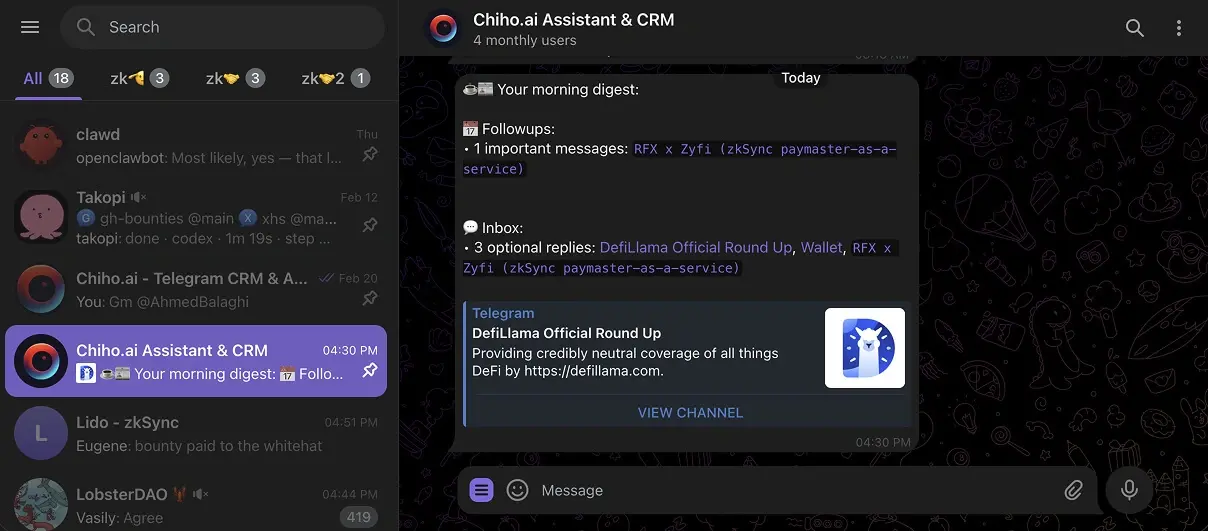
To operate a shared Telegram inbox, choose the right team and connected account, give each active customer conversation an owner, and record a next action with a responsible person. Review unassigned tasks separately from conversation ownership. Shared visibility and AI summaries help people understand work; they do not establish who will reply.
In Chiho, conversation assignments and task assignees are separate. The Unassigned team-work view shows matching pending tasks and saved conversation assignments. It is not an inventory of every shared chat without an owner. Check the CRM conversation list as well before declaring the inbox covered.
This guide is published by Chiho and describes its own workflow. The October 2026 update is based on current product source and documentation, not a newly performed live-account trial. The existing product image above is general interface context, not evidence that the ownership acceptance checks below have passed in your workspace.
Define the inbox boundary before assigning work
A shared inbox is a way of coordinating conversations. It does not, by itself, establish which Telegram account sends a message or how much history is available. Start with a small set of conversations your team is authorized to handle.
Check four things:
- Team: select the intended team context rather than your personal CRM context.
- Account: confirm the connected Telegram account that holds the conversation. Team work is filtered by a selected shared account.
- Conversation: verify that the required CRM record and messages are available. A Telegram connection alone is not proof that a chat was saved in Chiho.
- Access: have the receiving teammate confirm that they can open the intended shared context. Team membership and participation in the original Telegram chat are different relationships.
Use the first saved-chat pilot checklist to establish the record before testing ownership. If you are still deciding which access model fits, begin with the Telegram CRM guide.
Conversation assignments and assigned-work views require the team's collaboration capability. Current controls tie this to the billing owner's seat coverage, including pending invitations. If assignment controls are unavailable, check the team's current capability and billing state; do not interpret a missing control as an empty queue. Confirm current terms in the product rather than assuming that every team has the same features.
Separate conversation ownership from task responsibility
Use the conversation owner for coordination: who checks the latest customer request, keeps the handover current, and makes sure the next reply has a responsible sender? Use task assignees for individual pieces of work. This is a recommended team convention, not a guarantee that Chiho prevents two people from replying.
For example, a fictional customer asks for a revised proposal and a technical answer. Maya owns the conversation and will coordinate the reply. Leo owns a task to check the integration question. Maya owns a separate task to revise the proposal. Completing Leo's task does not transfer the conversation to him or prove the customer received an answer.
The reverse matters too: assigning Maya as conversation owner does not automatically assign every pending task to her. Review both records. An owned conversation can still contain unassigned tasks; a conversation without an owner can contain work assigned to a teammate.
Save an explicit handover
In the shared conversation panel, use Assign / hand over when available. Select the Conversation owner, write a Handover note, and set the Due date (UTC) if needed. Save with Save handover, then refresh and read back the result.
A useful handover note records facts and decisions:
Fictional example: Customer asked for a revised proposal in the latest message. Maya coordinates the reply. Leo is checking the integration question; no delivery date is confirmed. Check Leo's answer before sending the proposal. If it is still unresolved at the agreed checkpoint, Maya sends a factual progress update.
Keep source evidence separate from interpretation. Confirm promises in the original messages before putting them in the handover. A generated summary is a starting point, not confirmation that a customer accepted a date or price.
The form labels its date as UTC. Agree on the actual customer-facing checkpoint and time zone in the note when a date alone is ambiguous; do not assume the field schedules a Telegram message or creates an exact-time reminder.
Have the receiving teammate read back the next action and identify who will send the next reply. Saving an owner is a record change, not proof that the recipient has seen or accepted the handover. For a fuller transfer checklist, use the team customer-conversation guide.
Recover unassigned work without mistaking filters for coverage
Open the relevant team's team work section, select the shared Account, and change Show from My work to Unassigned. Start with Overdue only switched off. A due-date filter can hide work that is not overdue or has no handover due date.
Review each result in two passes:
- Conversation: does it have an owner and a useful handover note? If responsibility is intentionally open, decide who will resolve that gap.
- Pending tasks: does each task have an assignee, a meaningful action, and a suitable due date? An assignment on the conversation does not answer these questions for its tasks.
Use Load more conversations while it is available, even if a filtered page is empty. The service pages through CRM records before applying the work filters, so matching work can appear on a later page. Repeat the review for each shared account in scope.
Then check the shared CRM conversation list. A chat that has no saved assignment and no matching pending task can be absent from the work view. An empty Unassigned result therefore means only that no matching work was returned for the scope and pages reviewed. It does not prove that every customer conversation has an owner, that no customer is waiting, or that every Telegram chat has been synced.
Also inspect records labeled Former member. They can still refer to a previous teammate rather than becoming unassigned automatically. Reassign relevant conversations and tasks deliberately; do not assume the Unassigned filter is an offboarding report.
Use AI for bounded triage, then verify the changes
Ask for a review across a known set of conversations, rather than an unsupported promise to find every missed commitment:
Review these selected shared conversations. List the latest customer request, its source evidence, the conversation owner, and pending tasks with their assignees. Flag missing responsibility or unclear next steps. Propose changes without sending messages or updating records.
Check the original messages before accepting suggested urgency, commitments, or reply wording. The Telegram VIP inbox skill offers a triage starting point; priority-based follow-ups explains how to separate tasks, reminders, and sending.
Permissions are action-specific. Chiho enforces account and team scope and capability checks, but CRM/task changes and single-message sends can execute directly after client-side tool controls. Some other actions require stored previews and approval. Do not assume every agent write pauses for human approval. Review the connected client's permissions and make a read-only request explicit before beginning. See the AI-agent connection guide for access and revocation guidance.
Recover a failed or conflicting handover
If a save reports that the item changed, do not repeatedly submit the old form. Preserve your unsaved note separately, cancel the edit, refresh the shared conversation, and reopen Assign / hand over. Compare the latest owner and note with your intended change, then save only the reconciled handover. The form retains the revision it opened with, so refreshing behind an already-open form is not the same as reopening it against the latest state.
For an uncertain network result, refresh and inspect the saved record before retrying. If the intended owner and note already persisted, avoid repeating the action simply because the first response was unclear. If the error is about access or team capability, resolve that condition before attempting the change again.
After recovery, verify the owner, handover note, and task assignees separately. A successful handover save does not establish that a Telegram reply was sent.
A small ownership acceptance checklist
The following is an evaluation protocol using synthetic or otherwise authorized conversations. It is not a report of measured results. Record observed outcomes and failures; do not infer faster service from completing the checklist.
- Choose one shared account and a known conversation. Confirm both teammates can read the intended context.
- Assign a conversation owner and add a handover note. Refresh and verify that the saved owner and note remain visible.
- Create a pending task assigned to a different teammate. Confirm that changing its assignee does not substitute for changing the conversation owner.
- With authorized test data, leave a task unassigned. Check the Unassigned view with Overdue only off, including later pages when available.
- Compare that view with the CRM conversation list. Identify a record with no saved assignment or pending task and document why a work filter alone cannot establish coverage.
- Have the receiving teammate state the next action, source evidence, and intended sending account. Verify access boundaries with a separate context they should not be able to open.
- Record the outcome: accepted, needs correction, or blocked. For each gap, name the person responsible for resolving it and the next checkpoint.
Use this compact review card for each active conversation: team/account; customer request and evidence; conversation owner; pending task and assignee; next checkpoint and time zone; saved-state verification; unresolved access or responsibility gap.
Once that process works, review unanswered customer requests alongside response-time measurements. Queue ownership and response timing answer different questions; neither alone proves service quality.
Open your Chiho CRM and review ownership for one authorized shared conversation. If you are new to Chiho, start here, save one chat, and verify its shared context before expanding the inbox.