 Chiho AI
How to Use Telegram in ChatGPT and Codex with Chiho
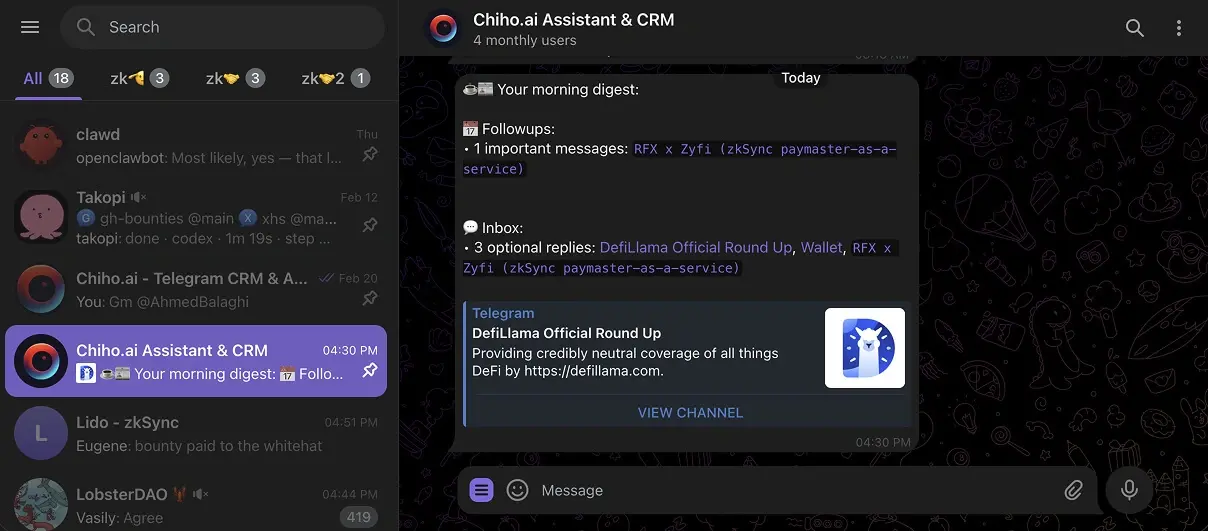
Chiho lets you work with your existing Telegram conversations from ChatGPT or Codex: find a message, review a customer thread, or prepare the next action. You ask in your AI client, and Chiho supplies authorized Telegram and CRM context. If you want to send commands to an agent by messaging a Telegram bot, that is a different connection pattern.
Install Chiho from the ChatGPT plugin marketplace.
This launch makes Chiho's hosted Telegram connection easier to discover and use. You no longer need to manually add the remote MCP URL to get started in ChatGPT. The direct MCP setup remains available for compatible clients and advanced configurations.
Installation, authorization, and a useful result are separate steps
Choose the client where you actually work. ChatGPT's marketplace installation makes Chiho available there; the Chiho browser consent connects the intended account or team. In Codex, use its plugin installation path or the manual MCP commands below, then complete the browser sign-in. An installed plugin alone does not prove access to your Telegram account.
Check OpenAI's account connection guide if the connection controls differ in your workspace. Available controls can depend on the client and workspace settings.
Before your first request, ask the assistant to check auth_status and account_whoami. Confirm the selected personal or team context, then identify a conversation you can independently recognize. A team connection sees the team's permitted scope; it is not a shortcut to an entire personal inbox.
Check the first read against a known conversation
Try this prompt after authorization:
Find the authorized conversation I name. Read a bounded recent window, tell me the date range you actually read, and summarize the latest commitment with its message reference. Explain any gaps. Do not send messages or change CRM records.
Compare the returned commitment and date with Telegram. A connection badge, a list of tools, or an empty successful response is not enough to show that useful account data was retrieved. Keep the source reference alongside the summary so you can reopen the evidence.
If tools are missing, first check that Chiho is enabled in this conversation. If tools appear but the expected chat does not, check account identity, team scope, and inventory coverage before reconnecting. For message search, use a phrase you know exists and a clear conversation scope; an empty match is not proof that the account connection failed.
Use the architecture guide to distinguish account access from Telegram agent remotes. Once the read is verified, try a Telegram inbox briefing or follow-up task workflow.
Bring Telegram context into the conversation
After you authorize Chiho, ChatGPT or Codex can use the Telegram and CRM tools available to the account or team context you selected. That includes workflows such as:
- finding and reading an authorized Telegram conversation
- searching messages and summarizing the latest decisions
- identifying unanswered questions and follow-up commitments
- reviewing tasks, tags, companies, folders, and CRM context
- preparing bounded CRM or Telegram actions when you explicitly request them
The plugin does not make every Telegram conversation public to the AI client. Chiho continues to enforce the account, team, capability, and action boundaries attached to the connection.
Get started in ChatGPT
- Open the Chiho marketplace listing and add the plugin.
- Start a conversation that uses Chiho.
- Complete the Chiho sign-in and browser consent flow.
- Review the selected Chiho account or team and the complete permission set before approving access.
- Begin with one small read-only request and compare the answer with the source conversation.
For example:
Check my Chiho connection, then read the selected Telegram conversation. Summarize the latest decision, unanswered questions, and explicit commitments with supporting message references. Do not send messages or change CRM records.
Starting with one known conversation makes it easier to verify the account, scope, source coverage, and result before expanding the workflow.
Use Chiho in Codex
Chiho is also available as a Codex plugin, including a Telegram workflow skill that helps Codex choose the correct Chiho tools and preserve important safety boundaries. Install Chiho from the plugin catalog, authorize the connection, and ask Codex to check the connection status before it reads Telegram data.
Developers and advanced users can still connect the hosted MCP resource directly:
codex mcp add chiho --url https://api.chiho.ai/mcp
codex mcp login chiho
The login command opens browser authorization. A transport connection alone does not prove that the intended Chiho account is authorized, so start by checking connection status and account context.
Review actions before you run them
Reading a conversation, changing a CRM record, and sending a Telegram message are different operations. MCP metadata helps clients distinguish reads, writes, destructive changes, and external effects, while Chiho applies server-side scope and execution safeguards.
Some actions can execute after the AI client's own tool controls and Chiho's authorization checks. Member invitations and group exits require stored previews and approval, and batch sends can require approval according to the connection's settings. Always review the target, content, and effect before asking an agent to act.
You can inspect and revoke connected AI clients from Connected AI clients. Revoking a connection invalidates its Chiho access and refresh tokens; it does not remove content already stored in an AI-client conversation.
Start with a workflow you can verify
The best first use is not “handle my entire inbox.” Choose a conversation you know and ask for a specific, reviewable result: a recap, a list of open questions, or a proposed follow-up task.
Explore the Telegram skills catalog for reusable workflows, read the hosted connection guide for permissions and setup details, or install Chiho now.