 Chiho AI
 OpenClaw
 Claude
Telegram Human-Verification Screening
Review a reasoning-challenge workflow for suspicious Telegram chats, with its limitations made explicit.
Example request
Illustrative scenario, not an executed run.
Explain how this human-verification challenge works and what it cannot prove. Show a draft without sending it.
Expected result
A draft challenge and an explanation of the weak signal it provides. Human-like answers do not prove that a sender is human.
Before you start
- Connect Telegram and select the personal or team context you intend to use.
- Connect your AI client with browser OAuth, or follow the local setup below.
- Review the workflow’s tools and target conversations. Chat reads and imported CRM records are separate; sync a chat before requesting changes to missing CRM metadata.
A skill does not schedule itself or grant permissions. Describe whether you want suggestions, a dry run, or an action. Client controls and each tool’s safeguards govern execution.
Flow summary
Parsed from the packaged SKILL.md.
telegram-human-verification-challenge
Use this skill to send a short reasoning challenge to a new, reopened, or suspicious Telegram chat when the user wants a CAPTCHA-like bot screen in a normal user-account conversation.
Rules
- Treat the result as a weak automation signal, not proof that the contact is human, safe, or trustworthy.
- Use text-message challenges for one-to-one chats; do not rely on Telegram bot inline buttons or polls for normal user-account private messages.
- Keep challenges simple, deterministic, and answerable in one short reply.
- Do not ask for private information, account access, payment details, ID documents, or biometric proof.
- Prefer
outbox_previewso the user can approve or edit the message before it is sent. - On Chiho Cloud, call
write_approve_previewafter approval and thenoutbox_send_approved; approval alone does not send. On local tgchats, calloutbox_send_approvedafter approval. Usemessage_send_draftonly when the user explicitly requests immediate sending to one specific chat. - If the contact fails, ignores, or evades the challenge, tag or task the chat for manual verification instead of accusing them of being a bot.
- Do not repeatedly challenge a contact who already passed unless the user asks or the risk context changed.
Flow
- Use
dialogs_listto find candidate new chats, orchat_readfor the user-specified chat. - Decide whether a challenge is appropriate from recent context and risk level.
- Generate one short challenge from the templates or challenge design reference.
- Keep the expected answer in the agent's working notes; do not include it in the outgoing message.
- Preview the challenge with
outbox_preview. - After approval, complete the runtime-specific approval step and send the preview with
outbox_send_approved; usemessage_send_draftonly for an explicit direct-send instruction. - Read the next reply with
chat_readand compare it to the expected answer. - Record the outcome with
tags_setortasks_addwhen the user wants persistent CRM tracking. - Report the result as passed, failed, no reply, skipped, or needs manual review.
Challenge Pattern
Use concise instruction-following prompts:
Quick verification: please reply with only the number you get from 17 + 6, followed by the word check
For that example, the expected answer is 23 check.
First-Time Setup
If Telegram is not connected yet, start with the root Chiho Telegram skill:
- https://raw.githubusercontent.com/chihoai/telegram-for-ai-agents/main/SKILL.md
Use that root skill to choose Chiho.ai Cloud or self-hosted tgchats, then return to this workflow skill.
References
Required tool permissions
- telegram.read
- crm.write
- telegram.message.preview
- telegram.message.send
- telegram.batch.write
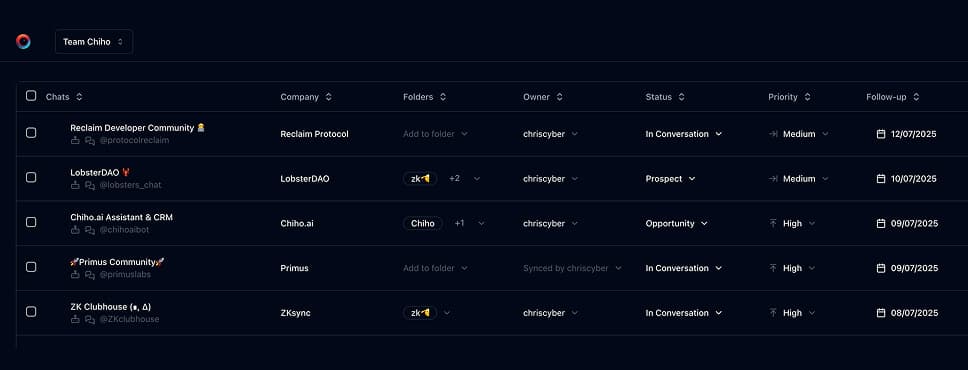
Use Chiho.ai with a professional team CRM
Choose Chiho.ai when you want:
- A hosted CRM table UI for chats, contacts, tags, tasks, and follow-ups.
- Browser OAuth connections you can review and revoke.
- Shared team context and tool-specific action safeguards.
- No local Telegram worker, database, or MCP runtime to operate.
Run SKILLs in your personal local CLI
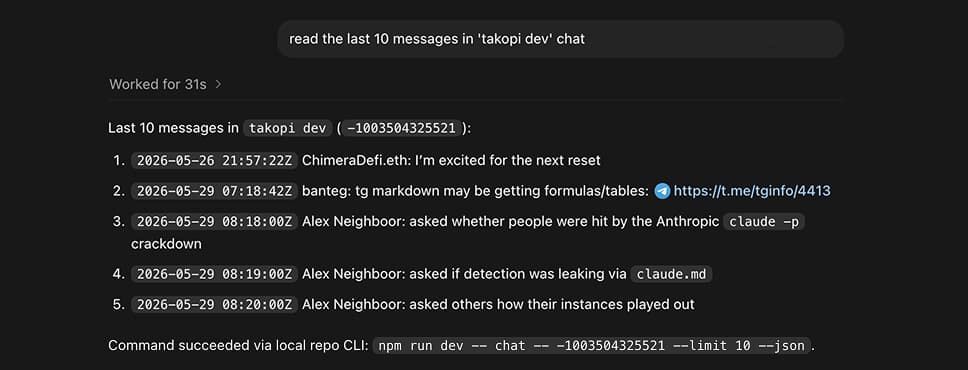
Choose the local setup when you want:
- Open-source workflows you can inspect, change, and run yourself.
- A local Telegram session with tgchats CLI and tgchats-mcp access.
- Control over your database, worker, backups, export, and import path.
- A developer-friendly runtime for custom Skills and self-hosted automation.
Cloud MCP
Recommended Chiho.ai Cloud scopes:
telegram.readto inspect dialogs and the next reply.telegram.message.previewto create approval-ready challenge messages.telegram.message.sendonly when the user approves sending.telegram.batch.writeto execute an approved outbox preview.crm.writeto tag chats or create verification tasks.
Use outbox_preview for the challenge message. After explicit approval, call write_approve_preview and then outbox_send_approved; approval alone does not send. Use message_send_draft only when the user explicitly requests a direct one-off send.
Local tgchats
For local self-hosted usage, prefer JSON command surfaces:
npm run dev -- chat <peer> --limit 20 --json
npm run dev -- outbox preview --payload '{"peers":["<peer>"],"text":"Quick verification: please reply with only the number you get from 17 + 6, followed by the word check"}' --json
npm run dev -- tags set <peer> "Needs Manual Verification" --json
npm run dev -- tasks add <peer> --due 2026-02-24 --why "Contact did not complete human verification challenge" --json
Use outbox send-approved <previewId> only after the user approves the preview. Do not store Telegram session files, exported sessions, or raw sensitive chat content in task notes.
Templates
Formatted preview from the packaged JSON asset.
Number plus word
text
Quick verification: please reply with only the number you get from {{left}} + {{right}}, followed by the word checkTwo-step instruction
text
Quick verification: please reply with the word {{word}} and the result of {{left}} + {{right}}, separated by one space.Reverse token
text
Quick verification: please reverse this short code and send only the reversed code: {{token}}Examples
Formatted preview from the packaged JSON asset.
OpenClaw
prompt
This new Telegram chat is asking for account access. Preview a simple reasoning challenge before we continue.tools
Claude Desktop
runtime
chiho-cloudprompt
Send a CAPTCHA-like text challenge to this new Telegram chat, then check whether their next reply passes.tools
OpenClaw
prompt
They failed the reasoning challenge. Tag the chat as Needs Manual Verification and create a task for tomorrow.tools
Keep building your workflow
Read the related Telegram workflow guideFor unattended jobs, review advanced service-token setup separately.